Tuesday, July 9, 2013

LENOVO THINKPAD HELIX REVIEW

LENOVO THINKPAD HELIX REVIEW

Since the official launch of Windows 8 last fall, we’ve seen more convertible PCs in more form factors than we’d care to count. But for comfortable use as a laptop, and a relatively lightweight tablet when you don’t need the keyboard, the traditional clamshell with a removable screen (like HP’s Envy x2) is still hard to beat.
…through some complex but well-executed engineering, Lenovo delivers perhaps the best do-it-all Windows 8 device we’ve seen yet.
Lenovo’s ThinkPad Helix takes that design and – through some complex but well-executed engineering –delivers perhaps the best do-it-all Windows 8 device we’ve seen yet. The Helix functions well as a traditional laptop with long battery life, thanks to its ThinkPad keyboard, dual batteries, and a 1080p IPS panel. And with its Core i5 CPU and SSD housed behind the detachable screen, it’s also a powerful tablet, complete with a digitizer and storable pen.
The price, however, is hard to ignore. A starting price of $1,680 is a lot to ask for an 11-inch device with a 1080p screen, a Core i5 processor, and a 128GB solid-state drive these days – no matter how good the keyboard or battery life is. And stepping up to a 180GB SSD and a Core i7 CPU with Windows 8 Pro pushes the price to more than $2,000. Unless your employer is willing to pick up the tab, you’ll want to make sure the digitizer and detachable screen are important enough to your workflow.
We were huge fans of Lenovo’s Yoga, another convertible PC out on the market. Is the Helix another win for Lenovo, or does it suffer the same fate as the company’s Horizon: a great idea, but just too expensive to justify buying. Let’s find out.

A ThinkPad, first and foremost

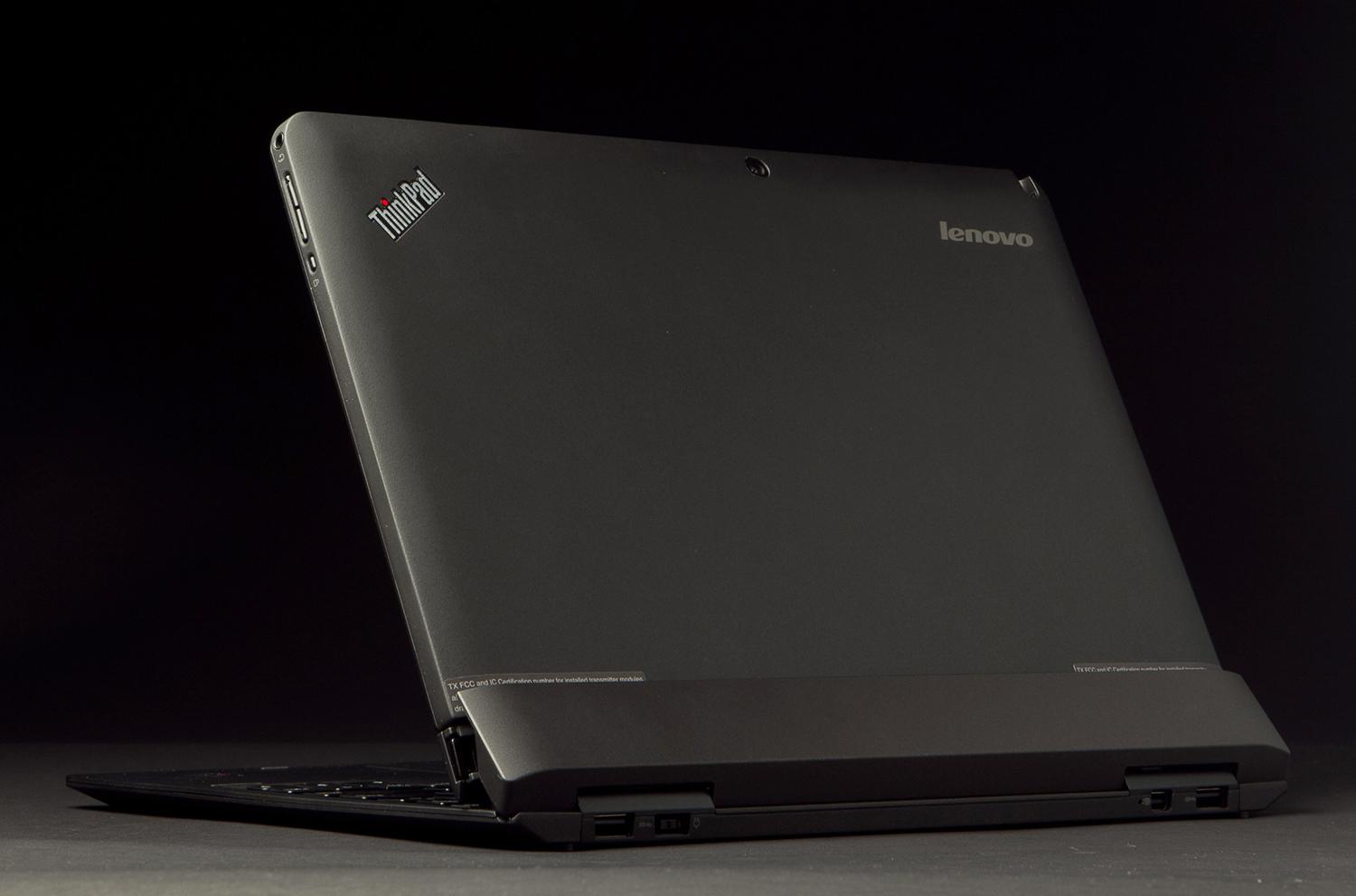
The first thing we noticed when we started using the ThinkPad Helix, aside from its rather formidable heft (for an 11-inch Ultrabook), was that it looks and feels like a ThinkPad – from its matte-black exterior to its rugged build to its excellent input devices.
If you’re familiar with recent ThinkPads, the Helix shouldn’t disappoint from a laptop perspective. With the top and bottom rows mostly receiving the shrunken-key treatment, the keyboard feels only slightly cramped. Key feel and travel are excellent for a device that’s 0.8-inches thick – especially since half that is taken up by the tablet. But while Lenovo advertises the keyboard as spill-resistant, there’s no backlight, which feels like an annoying omission in an Ultrabook this pricey.
Though the touchpad lacks any physical buttons and depresses a bit easier than we’re used to, it was very responsive and accurate (and relatively roomy at 4.75 inches diagonal). It’s also very comfortable to use in Windows 8. It’s flush with the wrist area, which makes swiping in from the sides to bring up menus a less jarring affair than with many devices we’ve tested with slightly recessed touchpads.
Of course, Lenovo hasn’t ditched its trademark red TrackPoint pointing stick. It’s still there between the G, H, and B keys. What’s missing, however, is the dedicated second group of mouse buttons below the space bar. Once you get used to it, though, the clickable touchpad serves that purpose well enough.
While the input devices on the Helix are excellent, the port selection and placement suffers a bit due to the device’s versatile design. First (and worst) off, there is no SD card slot or VGA port to be found on the Helix, although both can be added via adapters using on-board USB and DisplayPort connectors.
All the ports, though, sit at the back of the device. There you’ll find two USB 3.0 ports, a rectangular power connector, and the DisplayPort. That’s it as far as wired connectivity goes in laptop mode. If you detach the screen to use the Helix as a tablet, you’ll find one USB 2.0 port, a DisplayPort, a SIM card slot for mobile broadband (on some models), a proprietary dock connector, and anchor holes that keep the screen rigidly attached to the keyboard in laptop mode.

A complex but well-designed hinge

While the Helix is nice enough as a laptop, it’s the versatile, complex hinge that sets the device apart from pretty much anything else on the market. In addition to detaching the screen for use as a tablet, the hinge also lets you connect the screen in two ways. You can either attach the tablet in the traditional, front-facing laptop orientation, or attach it facing out for use in presentations.
Thanks to two dedicated rigid posts on the base that anchor themselves into holes in the bottom of the tablet, the hinge holds the tablet in place well in either orientation. There is a slight gap at the base, where it connects to the keyboard, but the tablet snaps easily into the base with an audible and tactile click. Once anchored, we never once worried that the two pieces would separate accidentally.
While the Helix is nice enough as a laptop, it’s the versatile, complex hinge that sets the device apart from pretty much anything else on the market.
Getting it out again is as simple as depressing a large button on the left side of the base, and lifting off the screen. You can easily attach or detach the tablet with one hand. That alone is worthy of praise, as we’ve seen far more cumbersome convertible designs lately (hello, Acer Aspire P3).
The hinge also adds some extra cooling when the tablet is docked with the keyboard. A pair of small fans blow air up into the tablet. However, in our tests, they didn’t exactly keep the device cool to the touch when doing serious CPU or GPU tasks. With the tablet docked with the keyboard and the fans doing the best they could, temperatures near the top of the back of the tablet reached as high as 124.7 degrees when maxing out the processor or the integrated graphics.
The good news is that you won’t often be touching the top of the tablet while gaming, editing video, or doing other intense tasks. And the keyboard base, since it lacks any components other than the secondary battery, never got noticeably warm.

A powerful, though hefty tablet

With a 1.8GHz Core i5-3337U processor, 8GB of RAM, and 128GB solid-state drive all housed behind the 1080p screen, the Helix is well equipped for most mainstream computing tasks, thanks to its familiar U-series CPU found in many other Ultrabooks. It’ll handle things like Photoshop or basic video editing just fine. But all those components – plus a Gorilla Glass screen, a digitizing layer, and the accompanying pen – means the Helix feels a bit heavy in the hand as a tablet, weighing 1.73 pounds.
Lenovo Helix Review review back angleGiven all that Lenovo managed to fit into the 0.4-inch thick tablet, along with a rather bright 1080p IPS screen, the Helix is impressive from an engineering standpoint. But if your work involves lots of data input while away from a desk, the Helix’s heft will likely at least be an annoyance.
There’s little to complain about when it comes to the screen. It’s an IPS panel, so viewing angles aren’t an issue. And while the panel was only able to reproduce 73 percent of the sRGB scale in our testing (which isn’t terrible, but isn’t great, either), it is one of the brighter panels we’ve seen in a long time.

Long battery life, but no Haswell (yet)

The Helix’s battery life has the odd distinction of being both very impressive, and the best reason to wait for a CPU refresh. While Intel launched its 4th Generation Core (Haswell) chips in early June, the company has yet to offer up the business-focused versions that make their way into ThinkPads and other business and enterprise PCs.
With the Helix, Lenovo delivers perhaps the best-designed and versatile Windows 8 convertible we’ve seen yet.
So we can’t find fault with Lenovo for sticking with 3rd Generation Core processors for now. Indeed, the company has done a great job with what’s available. When we tested the Helix in laptop mode, draining both the tablet and keyboard batteries, it lasted 4 hours and 48 minutes in our extremely demanding Battery Eater test. That’s about an hour-and-a-half longer than Samsung’s Ativ Book 5 lasted on the same test. The tablet alone, without the extra keyboard battery, managed to hold out for 2 hours and 18 minutes on this test. The latter score isn’t exactly impressive, but it’s certainly respectable.
Overall, the Helix’s battery life is great. Unless you push the CPU or GPU hard, it should easily get you through a day’s worth of work without needing a recharge. But what gives us pause is the battery life increases that we’ve seen from systems equipped with the newer Haswell processors (like Apple’s latest MacBook Air).
Intel made some bold claims about its latest chips delivering up to a 50 percent or more battery boost. And from the limited real-world examples we’ve seen so far, those numbers seem plausible. So if you like the idea of a Helix that can hold out for 12 hours or more without needing a charge, you may want to wait until Intel launches Haswell for business users and Lenovo incorporates the chips into Helix models. The newer CPUs will also deliver improved graphics performance as well.

Conclusion

With the Helix, Lenovo delivers perhaps the best-designed and versatile Windows 8 convertible we’ve seen yet. Thanks to an excellent keyboard and a well-executed touchpad, it works great as a laptop. It’s a bit hefty as a tablet, but the 1080p IPS screen looks good. With the included stylus, many people will appreciate pen input. And the Ultrabook-class components mean the system won’t balk when you throw demanding tasks at it the way current-generation Atom-based machines (like HP’s Envy x2) often do.
If you don’t mind its 3.5-pound heft, and you’re looking for a versatile convertible that seems as ruggedly built as any other ThinkPad, the Helix should make an excellent companion in the office or on the road.
But if you like the idea of a Helix that can last a day-and-a-half (or more) without needing a recharge, you may want to wait until Lenovo refreshes the device with Intel’s latest chips. The new CPUs won’t technically make the Helix any lighter, but they may let you leave the charger at home, even on an overnight business trip.


Highs:

  • Remarkably versatile design
  • Great ThinkPad keyboard
  • Comfortable touchpad
  • Long battery life with keyboard dock


Lows:

  • Heavy
  • Tablet alone has short battery life
  • Tablet gets hot under heavy load
  • Limited port selection: No VGA port or SD card slot
  • Keyboard not backlit

LENOVO IDEAPAD YOGA 11S REVIEW

LENOVO IDEAPAD YOGA 11S REVIEW

Lenovo’s IdeaPad Yoga 13 was among the first Windows 8 convertibles, and also among the most successful, earning our “Recommended” award when we reviewed it in November. Even so, the system had an obvious flaw: size. Though made for a package that’s small by laptop standards, the 13-inch display was unwieldy compared to a tablet. The solution to the size issue came in the Yoga 11: a system handicapped by Nvidia’s Tegra 3 processor and Microsoft’s unpopular Windows RT operating system.
We’re still waiting for a convertible that can rival an iPad or Nexus 10 as a tablet, but Lenovo’s latest effort comes as close as any.
Now, after several months of waiting, we have what might be the best of both worlds: the Yoga 11S. This convertible laptop boasts a small footprint but also packs an Intel Core i5-3339Y processor, 8GB of RAM, and a 128GB solid-state drive. And, like its predecessors, this convertible features a unique hinge that allows for multiple usage modes.
Improving the hardware raises the price to $1,000 for our review unit, but an entry-level model with 4GB of RAM can be purchased for just $750, a mere $150 more than the Windows RT version, and $150 less than the Yoga 13. Let’s see if this affordable convertible can match the quality of its big brother at a budget price.

Honey, I shrunk the computer!

Like the Yoga 13, the smaller 11S has an aesthetic similar to previous laptops in Lenovo’s U-series line. A soft-touch coat (available in orange or silver) covers both the lid and bottom, which slightly extends past the interior chassis, creating a subtle lip around both the top and bottom half. This design invokes the look and feel of well-loved hardcover book.
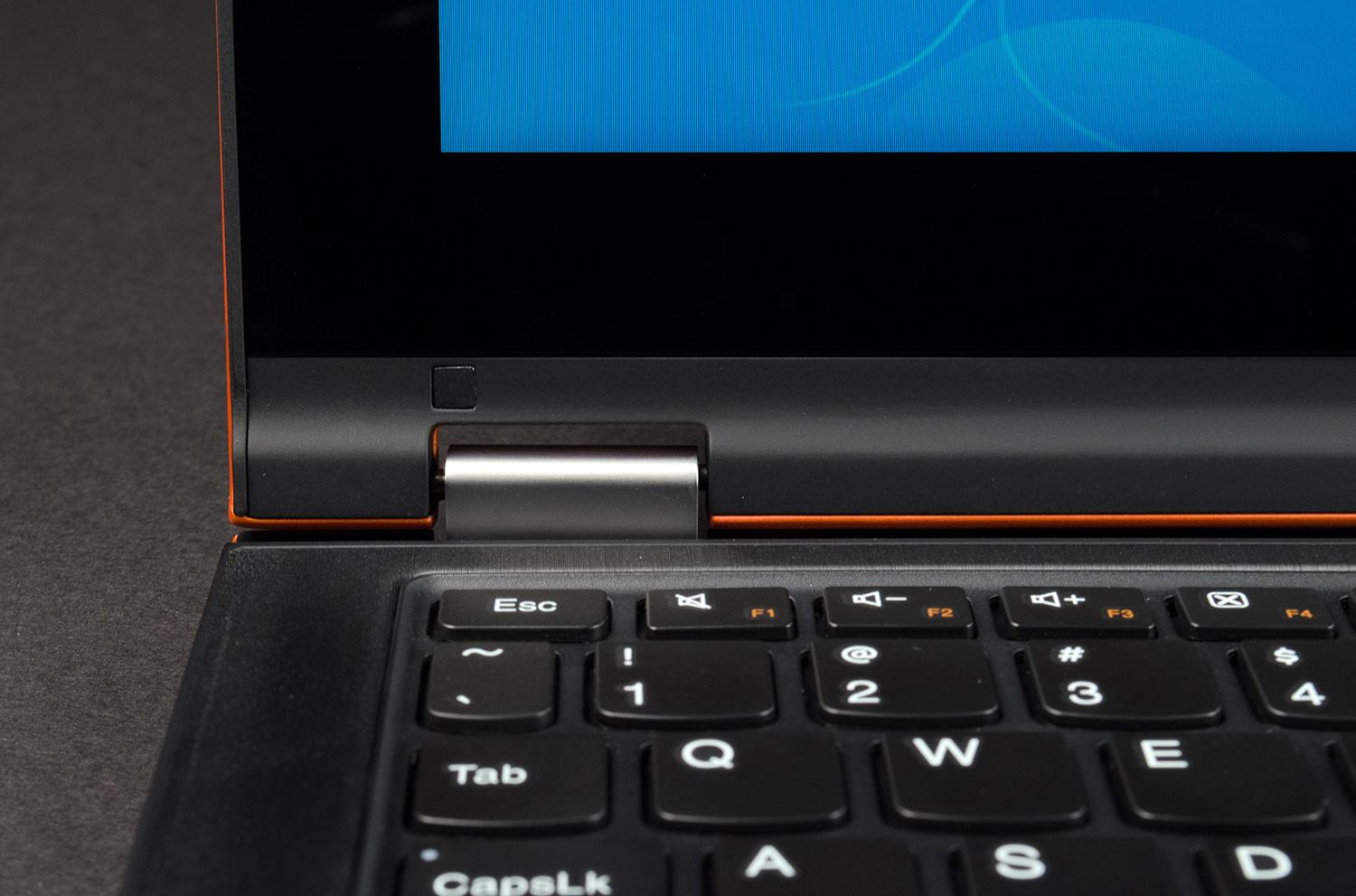
Materials are excellent from top to bottom. While the exterior is soft-touch, Lenovo finished the interior with an unusual, fabric-like material that looks like brushed aluminum but feels like felt. Some conventional plastics do bond the system together, but even these have a sturdy matte finish, and the display hinges are metal.
Lenovo Yoga review back angle  Lenovo Yoga review USB HDMI ports
Build quality is impressive, too. While there are a number of notable seams in the chassis, they fit tightly together, melding into a single, sturdy frame. The hinges are stiff enough to keep the display in the desired position, and the buttons used for power and volume control offer solid, durable construction. Better still, Lenovo positioned the buttons so they’re easy to access from both landscape and portrait orientation while the system is used as a tablet.
Our only design complaint stems from the convertible hinge. To use the Yoga as at tablet, you must fold the display backwards until it sits flush with the bottom of the laptop. However, this means the keyboard becomes the “back” of the tablet. The system’s software automatically disables key input, so accidental typing is not a concern, but the feel is a bit disorienting.

Short on ports

The Yoga 11S is a small system, so there’s not much room for connectivity. Users have to make do with two USB ports – only one of which is USB 3.0 – and rely on HDMI for video-out. A combo headphone/microphone jack and SD card reader are provided, too, but that’s it. We’d much prefer to see an extra USB port and an alternative for video-out, such as DisplayPort.

Keeping the keys slim

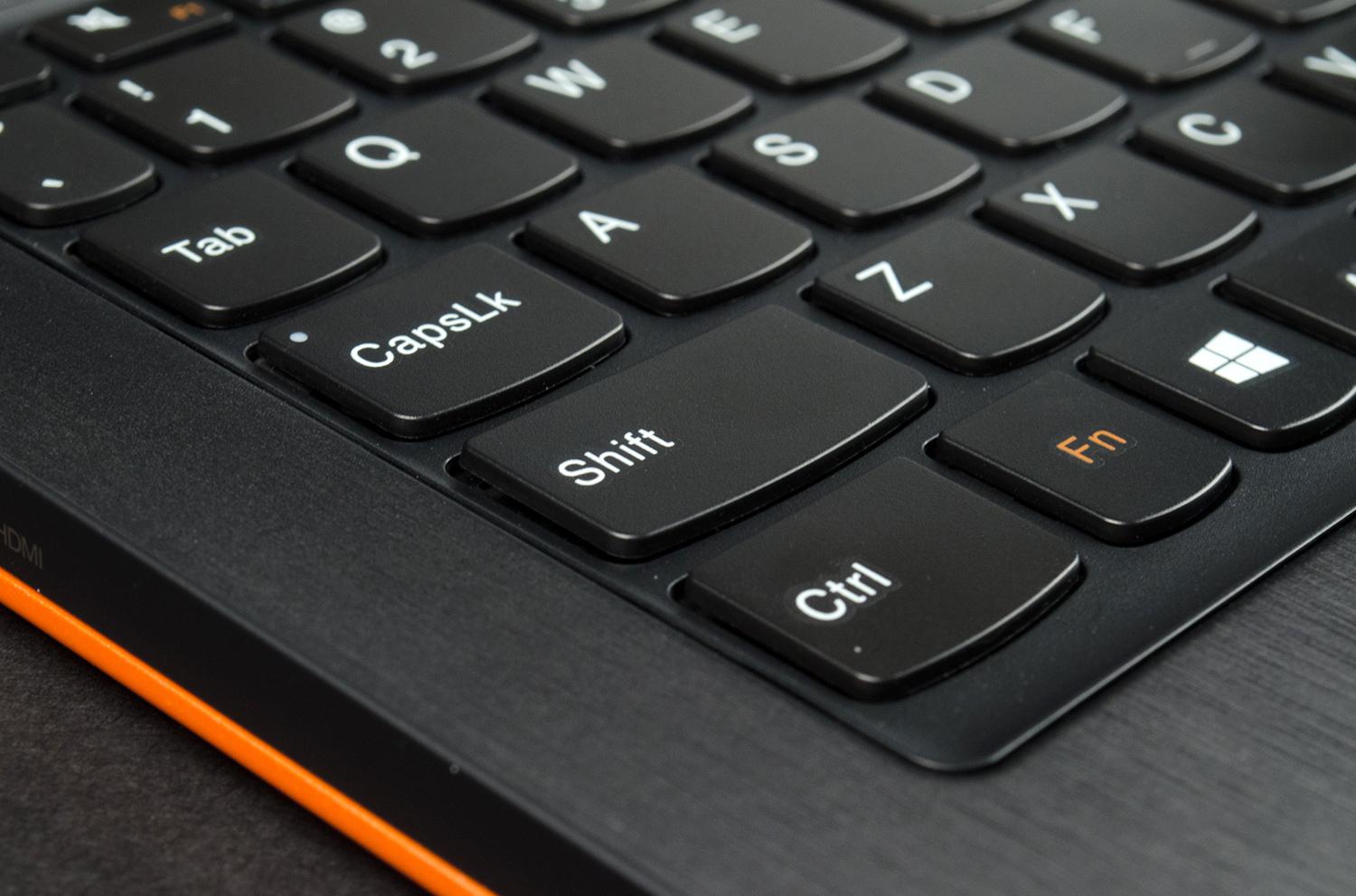
Slim systems often fail to provide a responsive keyboard, and Lenovo has made some sacrifices, too. Though similar to its other Lenovo laptops at first glance, the keyboard on the Yoga 11S offers limited key travel – a fact that may annoy some typists.
Lenovo Yoga review keyboard macro
At the same time, the keyboard does deserve some praise, as the keys provide decent feedback despite their limited movement. There’s also a good amount of space given that this is an 11.6-inch laptop. Some keys are shortened, but none excessively
There’s plenty of space for navigation on the system’s ample touchpad, and, as you’d expect, multi-touch gestures work very well. We do wish the integrated left/right buttons could deliver more tactile response, but competitors fare no better.

Not a bright one

The Yoga has fat bezels designed to provide the user with a place to grip the system without activating the touchscreen. They do their job, but they also make the display look a bit small and old-fashioned, particularly next to modern 13-inch Ultrabooks.
This design invokes the look and feel of well-loved hardcover book.
Bezels are the least of this convertible’s woes, however. During our tests, we measured a maximum brightness of just 149 lux, which is substantially below average (most laptops manage at least 200, and some can leap above 400). Limited usability is the result of this, as bright lighting makes the Yoga 11S very difficult to use.
We might be able to forgive this flaw if there were other benefits, but alas, our test suite returned modest results across the border. The display can render a marginal 69 percent of the Adobe sRGB gamut, and overall contrast is just mediocre. Deep black levels are the only positive, and they do contribute to decent subjective quality in movies and games, but this quality is only noticeable in a darkened room.
The Yoga’s small speakers are about on par with the competition. They’re clear, but never loud, and they’re incapable of producing bass with any oomph. Most users will want to pack a pair of headphones or attach the system to external speakers.

Easy to pack, with record-setting power draw

Reducing the size of the Yoga’s display has reduced weight to just 2.8 pounds. Though still far heavier than a tablet, the reduction is enough to make tablet use comfortable (as long as you have two hands free). And, as you’d expect, its weight results in an extremely totable PC.
Low weight isn’t much good if battery life isn’t up to par, but that’s where the low-voltage Intel processor is put to the task – and it delivers. Our Peacekeeper browser benchmark drained the battery in four hours and 41 minutes, which is slightly above average. The light-load Reader’s Test, however, reported an excellent eight hours and 39 minutes of endurance.
Our power tests showed the Yoga 11S to be a record-setter, as the system draws just 8 watts at idle (with the display set at 100 percent brightness) and only 24 watts at full load. These results are the best we’ve seen from any laptop or desktop PC.

Low power draw means poor performance

The Yoga 11S uses a specific type of 3rd-gen Core processor known as the Y-Series, which is designed to draw as little power as possible. However, focusing on power often requires a sacrifice in performance. The question is: how much?
Our SiSoft Sandra Processor Arithmetic benchmark came to a result of 28.4 GOPS, and 7-Zip turned in a score of 5,621. Both figures are behind the performance of an average Ultrabook by about 25 percent. While the system still feels snappy overall, processor intensive tasks can feel a bit sluggish at times.
Lenovo Yoga review hinge open
PCMark 7, however, managed a favorable score of 3,908. This is thanks to a solid-state hard drive that offers quick load times and excellent transfer speeds – two traits that help the Yoga feel quick in spite of its below-average processor.
A hard drive can do nothing for graphics, however, so the Intel HD 4000 integrated graphics processor comes in behind the competition. 3DMark turned in a Cloud Gate score of 2,217 and a Fire Strike score of 371 – numbers that once again are about 25 percent behind an average Ultrabook. The Yoga 11S is an extremely poor choice for gaming.

The power of silence

Many modern laptops produce minimal noise at idle, but the Yoga 11S is the first we can remember that’s literally silent. The only noise you’re likely to hear is the subtle buzzing of electronic equipment.
Lenovo must have some magicians on staff, because no other company comes close to offering design of this caliber at an everyman’s price.
There is a fan in this convertible, however, and it does activate once load is placed on the processor. Still, our decibel meter never peaked above 42db, which is another record. This is the quietest laptop we’ve reviewed.
Surprisingly, the system effectively operates at room temperature at idle, despite the passive fan, which is another record-setting low. Increasing load does spike temperatures as high as 109.2 degrees Fahrenheit, but this number isn’t unusual for an Ultrabook and only appeared during our graphics stress test. Loading the processor produced a more reasonable reading of 95.8 degrees, which is warm, but tolerable.

Conclusion

The Yoga 11S, like so many other convertibles, tries to combine a decent laptop with a good-enough tablet. And, like the Yoga 13, this smaller sibling is more successful than most. We’re still a ways away from a convertible that can rival an iPad or Nexus 10 as a tablet, but Lenovo’s latest effort comes as close as any, and does so without sacrificing traditional PC strengths.
There are some flaws, such as the display (which could be brighter), and performance (which is about 25 percent below average, storage excluded). But these flaws are balanced by outstanding design, long battery life, and record-setting lows in power draw, idle noise, and idle temperature.
And don’t forget the price. While our review unit retails at $1,000, it has 8GB of RAM, which is unnecessary for this type of PC. Drop down to 4GB and you’re looking at just $750, which is ridiculously affordable. Lenovo must have some magicians on staff, because no other company comes close to offering design of this caliber at an everyman’s price.
If you’re looking for a small convertible laptop, look no further; the Yoga 11S is the obvious choice.

Highs

  • Excellent design and quality
  • Very light and thin
  • Record-setting results in power draw, idle noise, and idle temperature
  • Literally silent at idle, quiet at low
  • Great value

Lows

  • Dim display
  • Only one USB 3.0 port
  • Below-average performance

RAZER BLADE REVIEW

RAZER BLADE REVIEW

When new companies enter the PC business they usually do so on the strength of a large existing consumer electronics empire. Razer, however, never got that memo. The company moved boldly forward over the last two years with the original Blade, an extremely thin laptop with unique, customizable LED-backlit keys.
Exactly how well the original model sold remains a mystery, but it apparently was successful enough to merit not one but two follow-ups. For 2013, Razer re-designed the edge and split it into two different models: the 14-inch Blade, and the 17-inch Blade Pro.
The Blade cuts through expectations to deliver a uniquely powerful Ultrabook.
We received the Blade for review, and though it’s the most modest of the pair, its specifications are nothing to laugh at. Razer paired a 4th-gen Core i7-4702HQ processor with Nvidia’s new GeForce 765M discrete GPU, and packed in 8GB of RAM and a solid-state hard drive. Yet, in spite of this power, the system is less than 17mm thick and weighs a mere 4.1 pounds.
The Blade isn’t cheap, though. Storage capacity is the only option, and the base model, with a 128GB drive, sells for $1,800. Stepping up to the 256GB drive, which we received in our review unit, sets the price just shy of $2,000. Competitors generally offer even more for the same price, but Razer’s ace is portability. Does the world really need a thin gaming laptop?

The emo MacBook

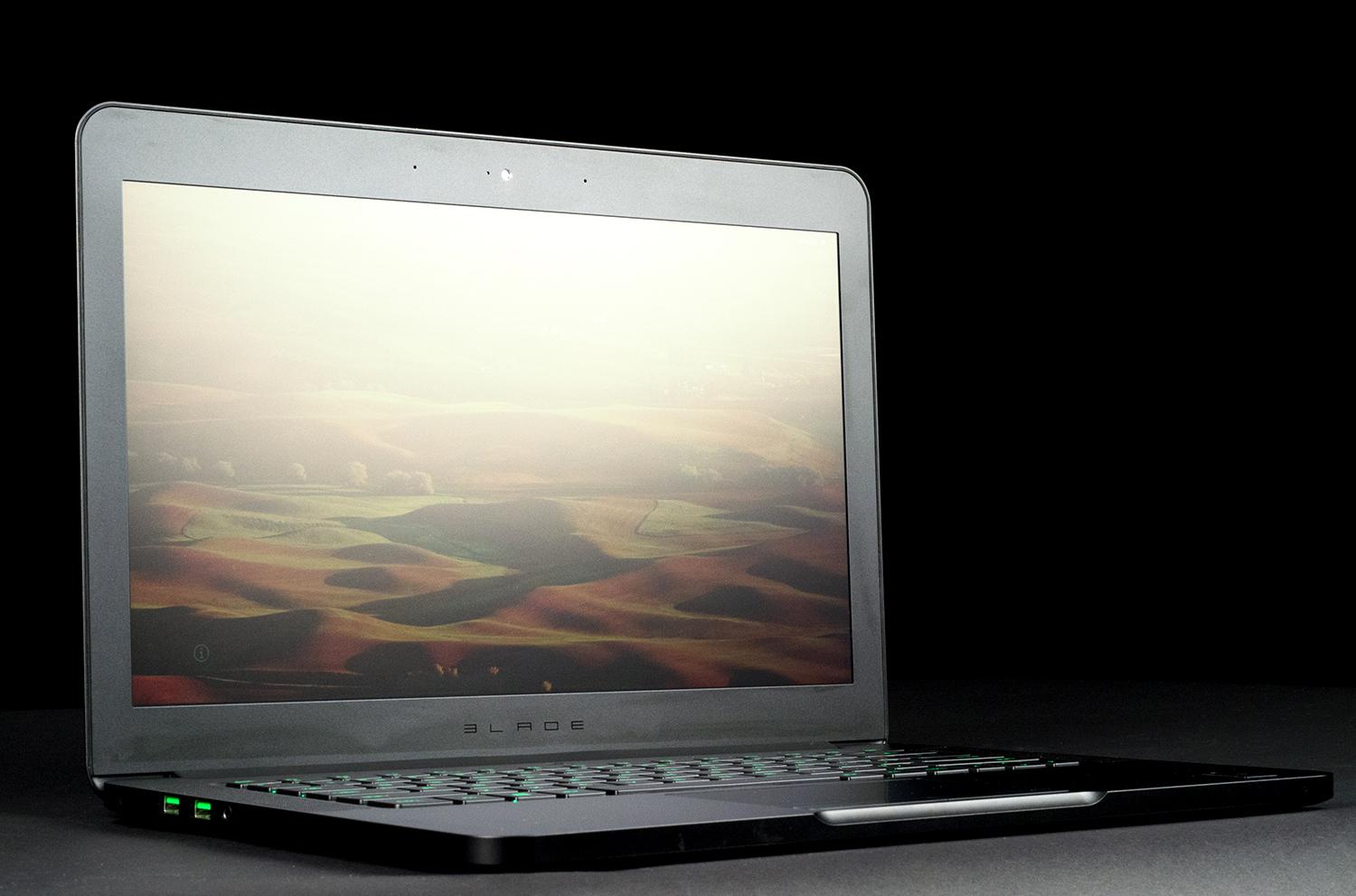
The Blade looks like a MacBook that decided to become a roadie instead of getting a “real job.” Emulating Apple isn’t uncommon, but the similarity between the Blade and a MacBook Pro is uncanny. Both have a uni-body metal chassis with flat, un-textured surfaces; both have sharp exterior lines; and both use a single, wide hinge to attach the display. The Blade even approximates the look and feel of the indentation below the Pro’s touchpad, which provides a grip to assist in opening the laptop.
Blade laptop review laptop angleBlade laptop review back open angle
This is a gaming system, however, so there are touches that clearly distinguish it from anything designed in Cupertino. Matte black is the only color available, a green LED back-lit logo adorns the rear of the lid, and all other design elements are subtle rather than explicit. The power button, however, is impossible to find in a dimly lit room – Razer may’ve gone a little too far with its design touches.
MacBook similarities aside, the Blade is a handsome laptop that offers the quality we expect from a $2,000 machine. Everything looks and feels tightly wound. The few panel gaps that exist are nearly invisible, the chassis is rock solid, and the display hinge is perfectly designed to open with grace yet never wobble during use. Not even Alienware can match the precision of Razer’s design.

Average connectivity

Gamers will be able to connect peripherals via two USB 3.0 ports and one USB 2.0 ports. There’s also HDMI-out and a combo headphone/microphone jack.
We think three is a respectable number of USB connections for a gaming laptop since it allows for an external hard drive, mouse, and keyboard simultaneously. We do wish individual headphone/microphone jacks were provided, as many gaming headsets (including several by Razer) aren’t compatible with a combo connection.

A better keyboard than you’d expect

Gaming laptops don’t need to have great keyboards, so most don’t. We’re happy to report that Razer shipped an excellent set of keys with the Blade. There’s more than enough space for enjoyable typing, individual key travel is good enough, and no keys are oddly located or truncated in size. There are very few laptops of any breed that provide a better typing experience.
There are very few laptops of any breed that provide a better typing experience.
The 14-inch Blade does drop the unusual customizable keys found on the larger Pro. Honestly, we don’t miss them. Though a cool concept, they never felt necessary, and their presence in this smaller laptop would both cramp the keyboard and inflate the price.
Backlighting is standard and can be adjusted to one of ten different levels – a great feature that more laptops should emulate. There’s almost no light leak, as well, so using the laptop in a pitch-dark room is both easy and enjoyable. We only wish that the LED lights could adjust for color. There’s nothing wrong with green, but we prefer to have the option since several competitors offer the ability to change colors.
As for the touchpad, although its smooth surface is not well defined from the surrounding palmrest, it’s near perfect otherwise and deserves praise. There’s plenty of room, multi-touch works well, and sensitivity is excellent. Razer even includes non-integrated left/right buttons.

Bright as the sun, but not as beautiful

The Blade’s display doesn’t look up to par at first glance, and testing proved this subjective impression to be true. We found the display can render just 63 percent of the sRGB gamut and that it offers poor performance in both contrast and black levels. The lack of quality is disappointing because it saps games of life and vibrancy.
Not everything about the display is bad, however. Maximum brightness is extremely high and the display’s matte coating resists glare. These factors combine to make the laptop usable in almost any lighting condition. In a normal room, the laptop can be set to just 50 percent or even 25 percent of maximum, which helps extend battery life.
Blade laptop review open front angle
While our eyes weren’t 100-percent pleased, our ears were enthused. The Blade’s speakers offer robust sound that’s both clear and loud. A decent pair of headphones is still an improvement, of course, but the built-in speakers work well if you don’t have any kind of external equipment on hand.

Gaming on the go

We’ve tested small laptops with discrete GPUs in the past, but most haven’t lived up to their promises. Razer, however, wisely waited for Intel’s new Haswell processor before launching its update of the Blade – a decision that paid off in our battery benchmarks.
The Blade looks like a MacBook that decided to become a roadie instead of getting a “real job.”
Peacekeeper, a Web browsing benchmark, ate through the battery in four hours and 58 minutes. That’s better (by a hair) than the Lenovo Yoga 11SAcer Aspire R7, and Asus Zenbook 13-inch, all of which have a dual-core rather than the quad-core found in the Blade. Even the Battery Eater load test required an hour and 47 minutes to drain a full charge, which is great for a laptop with powerful discrete graphics. A conservative user could squeeze six to seven hours of endurance from the Blade.
Our wattmeter showed that, despite its endurance, this laptop really sucks down the juice. At idle, with the display at maximum, we recorded 24 watts of consumption. At full load, that figure jumped as high as 67 watts. Though that sounds like a lot, these numbers are good for a gaming system as most consume 80 watts or more at load.

Slim but fast

At the heart of the Blade is a cutting-edge Core i7-4702HQ quad-core processor. This is not a low-wattage part, and the base clock speed of 2.2 GHz (with Turbo max of 3.2 GHz) reflects that. In our SiSoft Sandra Processor Arithmetic benchmark, the processor managed a combined score of 98.26 GOPS, and 7-Zip came to a result of 17,504 MIPS. These aren’t record-setting results, but they’re in league with thicker, larger laptops like the Lenovo Y580 and Samsung Ativ Book 8.
PCMark 7 came to an incredibly favorable result of 6,028. This is the highest score we’ve ever recorded from a laptop. In fact, it’s superior to some desktops like the Alienware X51. There’s no area where this laptop is weak; everything, including the hard drive, performs well.
Synthetic testing with 3DMark showed a system that’s capable but not incredibly powerful. The Cloud Gate test came to a score of 10,695, and Fire Strike reached 2,260. Both figures are four to five times better than a run-of-the-mill Ultrabook.
Real-world gaming proved this slim system can handle modern titles. Skyrim ran at an average of 52 FPS with settings configured to Ultra, and Deus Ex: Human Revolution ran at a similar framerate with all details turned on and at max. We also played Civilization 5 and Diablo III, both of which were extremely smooth at maximum detail.

A hot knife

At idle, the Blade is as mild-mannered as any Ultrabook we’ve reviewed. Though temperatures peak at 90 degrees Fahrenheit, that’s only in a small area near the rear of the chassis. The fan is almost silent.
Load a game, however, and the laptop’s demeanor changes. External temperatures can rise as high as 115 degrees, and the fan, reaching a peak of almost 46 decibels, becomes audible. Neither result sets a record, but be warned: this laptop will feel hot after a long gaming session.

Conclusion

The original Blade was interesting, but it fell short in performance and portability, making it more of a curiosity than a strong choice for consumers. Now, thanks to new hardware and a new design, Razer fulfilled its original vision. This gaming laptop can handle most games at high detail, yet it provides battery life that’s just a tad above an average Ultrabook. The Blade cuts through expectations to deliver a uniquely powerful Ultrabook.
Our one serious complaint is the display, which lacks contrast and vibrancy. Premium Ultrabooks and gaming laptops offer better quality on average, and this flaw hurts the subjective look of games played on the Blade. Its display is the only barrier between this laptop and an Editor’s Choice award.
Price is another obstacle, but it’s not insurmountable. Two grand is not unusual for a premium gaming system; and while competitors that sell for the same are a bit quicker, they’re usually at least an inch thick and weigh five to nine pounds.
This leaves gamers with a choice. Big laptops like the Asus G-Series and Samsung Series 7 Gamer offer a better display and somewhat quicker hardware, yet the Blade is more portable and more usable as a day-to-day PC. Neither option is obviously superior, but at least Razer’s laptop presents a strong alternative for those who don’t want to lug around a brick.

Highs:

  • Excellent design and quality
  • Pleasant keyboard and large touchpad
  • Incredibly slim given the hardware
  • Good battery life
  • Fast, well-rounded performance

Lows:

  • Low-quality display saps games of vibrancy
  • Expensive